


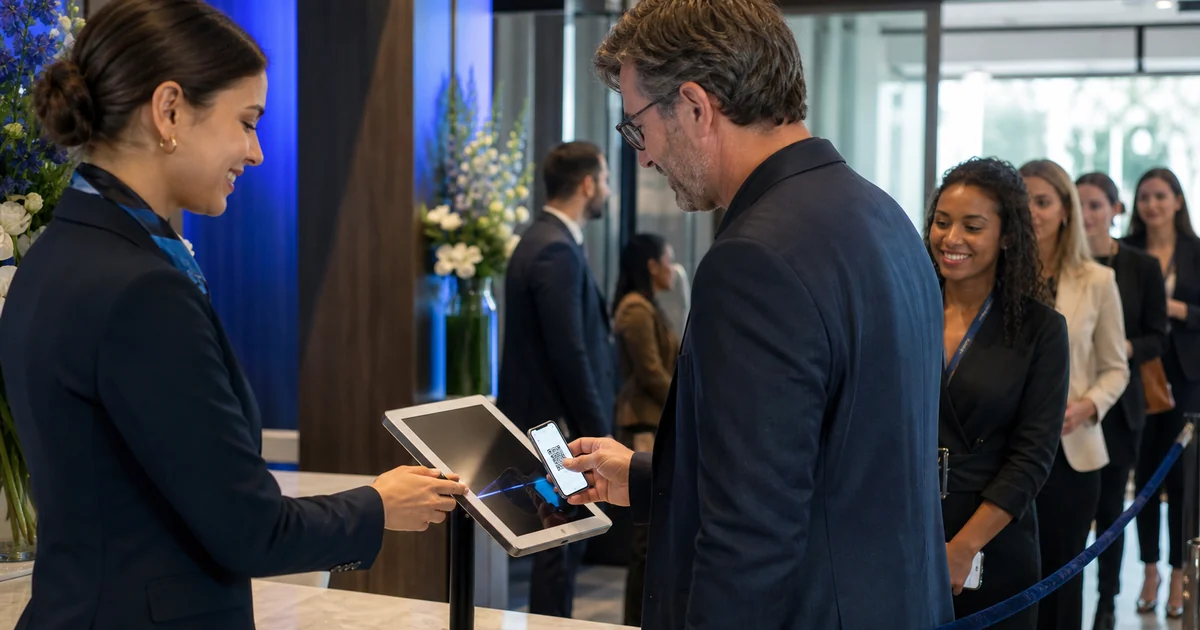
Every organizer eventually hits the same event-day bottleneck: a queue building at the door while one or two volunteers scan a printed list for names. Adding staff helps, but people are the one resource you can rarely spare at the last minute. A self-service check-in kiosk solves the problem from the other direction — it adds a lane without adding a person. And you almost certainly already own the hardware to build one: an iPad.
An iPad setup must be tested with the actual scanner experience, browser or app version and camera you intend to use. In Everlage, give staff an authorized scanner role and validate the complete workflow on the chosen device. A staffed scanner station is not the same as an unattended self-service kiosk. Do not promise kiosk mode, printer pairing or tablet compatibility until you have verified that exact configuration.
Why self-service check-in kiosks work
The math of a door line is simple: throughput is the number of lanes multiplied by how fast each lane moves. Most small events are stuck at one or two lanes because each lane needs a person. A kiosk breaks that link. Any guest who already has a QR-code ticket on their phone can walk up, scan it themselves, and be through in seconds — no staffer required.
That does three useful things. It shortens the line for everyone by handling the simple, majority case automatically. It frees your team to work the genuine exceptions — walk-ins, name changes, comped guests, and the person who cannot find their confirmation email. And because every scan is recorded the moment it happens, your attendance data stays live instead of being reconciled from paper afterward. Organizers who move from paper lists to scanning consistently report shorter lines and fewer disputes at the door, though the exact gain depends on your crowd and your layout.
A kiosk is not a replacement for staff, and treating it like one is the most common mistake. Think of it as the fast lane that absorbs the easy traffic so your people can concentrate where human judgment is actually needed.
What you need: the hardware shopping list
The appeal of an iPad kiosk is that the list is short and most of it is generic — you do not need event-specific hardware to build one.
An iPad. Almost any reasonably recent model works. The camera does the scanning, so you do not need the newest device; a hand-me-down iPad that still receives iPadOS updates is fine.
A stand or enclosure. An adjustable floor stand puts the screen at a comfortable height, while a locking countertop enclosure adds theft protection for unattended spots. Either is an inexpensive one-time purchase.
Reliable power. A kiosk that runs for hours needs to stay plugged in. Bring a long cable and a charger, or a battery pack rated for a full session, and find the nearest outlet before doors open.
A connection. Venue Wi-Fi is fine if it is solid; a cellular iPad or a phone hotspot is a safer bet in crowded rooms. Connectivity is the single most common failure point, so plan for it — see our guide to offline event check-in for the fallback strategy.
Optional extras. A second iPad kept in a bag as a hot spare costs nothing and saves the day if one device misbehaves. If many guests will arrive with printed tickets, good lighting near the kiosk helps the camera read codes quickly.
Step by step: setting up the iPad
Set the device up the day before, not in the parking lot. The sequence is straightforward.
Update iPadOS. Run any pending update so you are not surprised by a forced restart mid-event.
Charge it fully and plan to keep it plugged in. Treat the battery as a backup, not the primary power source.
Connect and test the network at the venue. A signal that is strong at home may be weak in a concrete-walled hall, so test from the exact spot the kiosk will stand.
Load your check-in tool. Install the Everlage scanner app, or open your check-in page in Safari, then sign in and select the correct event. Confirm the right date and guest list are loaded.
Stop the screen from sleeping. In Settings, set Display & Brightness > Auto-Lock to Never so the kiosk does not lock itself between guests.
Silence interruptions. Turn on Do Not Disturb (or a Focus mode) so notifications, calls, and banners never appear over the check-in screen.
Do a full test scan. Run a real ticket through end to end and confirm it checks in, then see what a duplicate or an invalid code looks like so you recognize it on the night.
Locking it down: Guided Access and kiosk mode
This is the step most first-timers skip, and it is the most important one. An unlocked iPad sitting in a public space is an invitation for a curious guest to swipe out of your app and into your email, your photos, or the App Store. You want the device pinned to exactly one screen.
Apple builds this in, and it is free. The tool is Guided Access, found under Settings > Accessibility > Guided Access. Turn it on and set a passcode that only your team knows. Then open the check-in app or page and triple-click the top or side button to start a session. Guided Access locks the iPad to that single app, disables the gesture that returns to the Home Screen, and lets you switch off hardware buttons and even mask areas of the screen you do not want touched. To leave, you triple-click again and enter the passcode.
The hybrid model: kiosk plus a staffed lane
The kiosks handle volume; a person handles judgment. Run both. The self-service lane takes every guest who already has a QR ticket and just needs to scan in. A staffed lane, running the scanner app on a phone or a second iPad, handles everything the kiosk cannot: walk-ins and door sales, name changes, comped and VIP guests, the person whose ticket is in a spouse's inbox, and anyone who simply wants a human.
Signage makes or breaks the split. Two clear signs — “Have your ticket? Scan here” over the kiosks and “Need help? This lane” over the staffed desk — do most of the sorting on their own. A single greeter standing at the fork to point people the right way is often the highest-leverage role at the door. For the underlying staffing and line math, our event check-in best practices guide works through how many lanes and scanners a given headcount actually needs.
Troubleshooting on event day
Most kiosk problems are predictable, which means they are preventable. Keep this short list in mind.
The connection drops. The most likely failure. Have a cellular hotspot ready and understand how your tool behaves offline before you rely on it — our offline check-in guide covers the trade-offs, especially around duplicate scans across multiple devices.
The screen goes dark. Auto-Lock was not set to Never, or the battery died. Prevent both by keeping the iPad plugged in.
A guest escapes the app. Guided Access prevents this; if it was not enabled, a staffer can re-pin the device in seconds.
A code will not scan. Wipe the camera lens, improve the lighting, and ask the guest to raise their screen brightness. Printed codes read best when they are flat and well lit.
“Already checked in.” Usually a double-tap or a genuine duplicate. Send the guest to the staffed lane, where someone can verify identity rather than waving them through.
Whatever else you do, keep a printed guest list at the staffed desk as a last-resort backup. It weighs nothing and it turns a total outage into a minor slowdown. If you are still designing your ticket codes, our guide to QR code check-in setup explains how unique codes prevent the copied-ticket problem that generic codes invite.
What it all costs
The honest answer is that the biggest line item is one you probably already own. If a usable iPad is sitting in a drawer, the marginal cost of a kiosk is a stand and a few minutes of setup. Buy the iPad new and it becomes the dominant cost — which is exactly why repurposing an existing device is the budget path this article is about.
